Huling na-update: Oktubre 2026
Para mag-add ng indicators sa MetaTrader 5, mag-open ng chart, pumunta sa Insert → Indicators, piliin ang indicator, i-adjust ang settings kung kailangan, at i-click ang OK. Ang custom indicators ay puwedeng i-install through ang MQL5 → Indicators folder sa loob ng MT5 data directory.
Ano ang indicators sa MetaTrader 5?
Ang indicators sa MetaTrader 5 ay analytical tools na ginagamit para pag-aralan ang price movement, trends, volatility, momentum, at trading activity.
Kasama sa MT5 ang dozens ng built-in indicators na naka-divide into categories gaya ng:
- Trend indicators
- Oscillators
- Volumes
- Bill Williams tools
Kasama sa popular MT5 indicators ang:
- RSI
- MACD
- Bollinger Bands
- Moving Average
- Stochastic Oscillator
Puwedeng gumamit ang mga trader ng MT5 through NordFX MetaTrader 5 para mag-analyze ng multiple financial markets.
Paano mag-add ng built-in indicators sa MT5?
Ang built-in indicators ay puwedeng idagdag directly mula sa MT5 top menu.
Step-by-step instructions
- Buksan ang MetaTrader 5.
- Buksan ang chart na gusto mong i-analyze.
- I-click ang Insert sa top menu.
- Piliin ang Indicators.
- Pumili ng indicator category.
- I-click ang indicator na gusto mong gamitin.
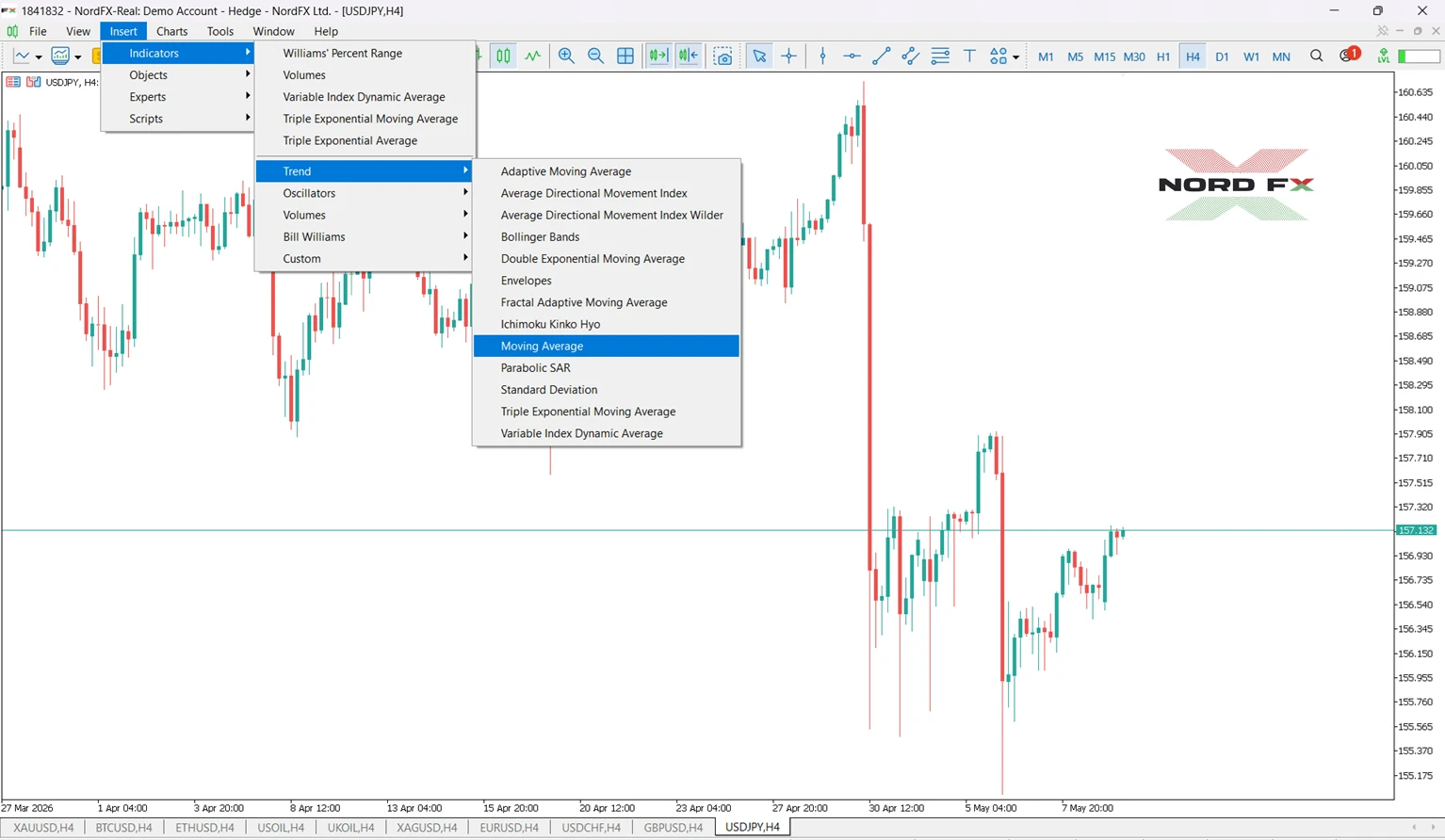
- I-adjust ang settings kung kailangan.
- I-click ang OK.
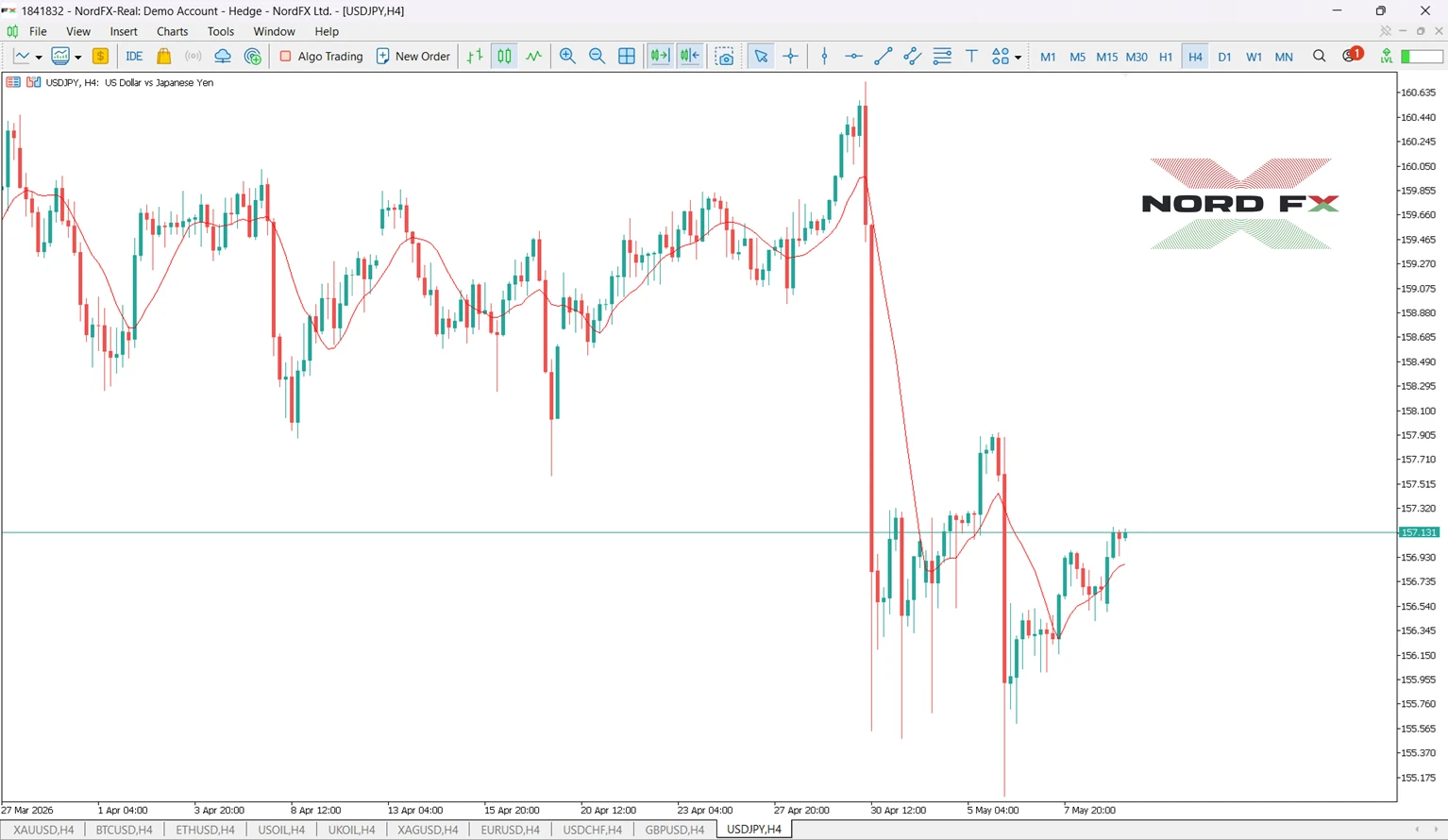
Agad na lalabas ang indicator sa chart.
Halimbawa: Paano mag-add ng RSI sa chart sa MT5
Heto ang practical MT5 example gamit ang RSI.
- Buksan ang EUR/USD chart.
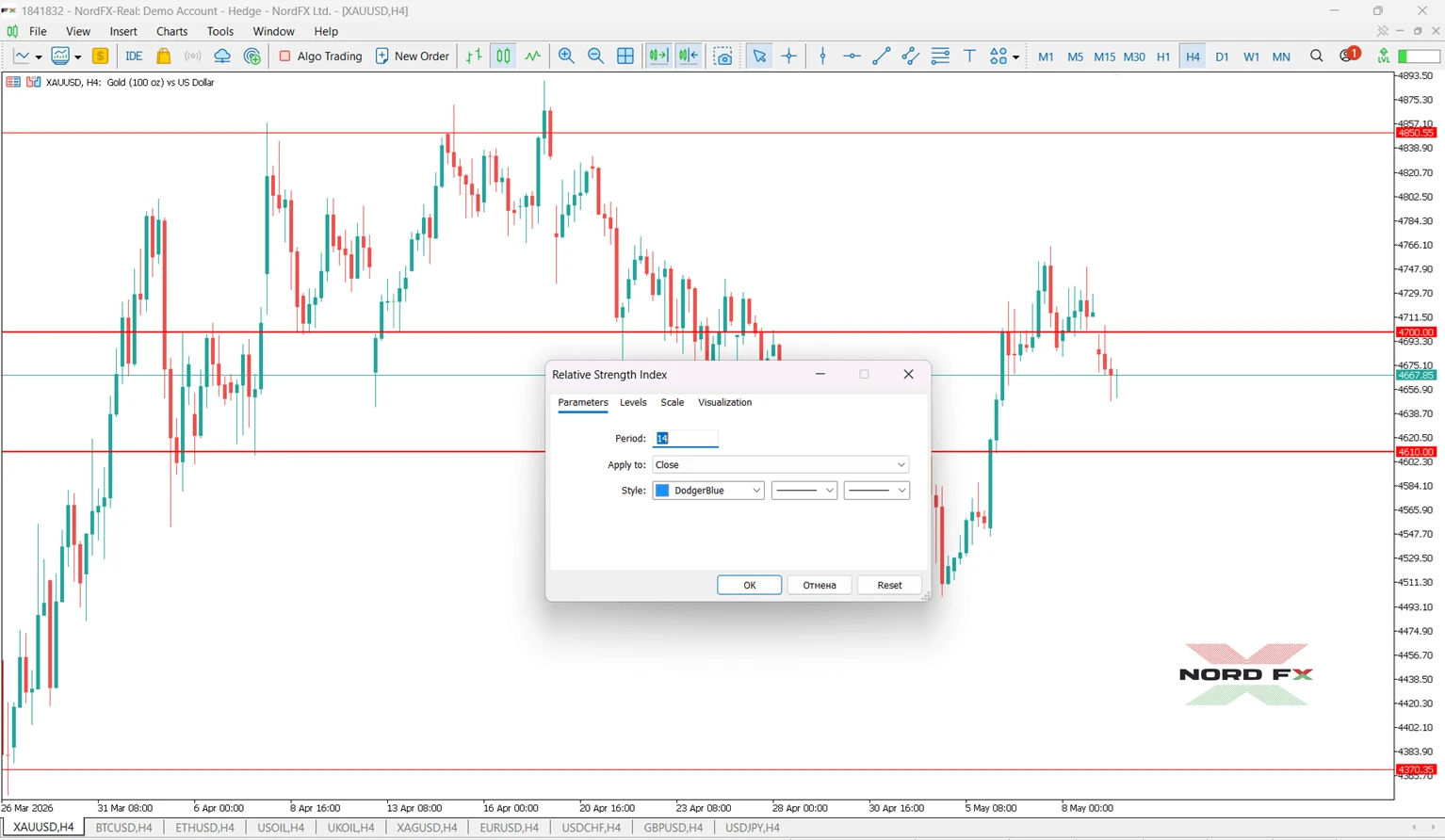
- I-click ang Insert → Indicators → Oscillators → Relative Strength Index.
- Iwan ang default na 14-period setting.
- I-click ang OK.
Lalabas ang RSI window sa ilalim ng chart.
Maraming trader ang gumagamit ng:
- RSI above 70 → posibleng overbought conditions
- RSI below 30 → posibleng oversold conditions
Pero, hindi dapat ituring ang RSI bilang guaranteed trading signal.
Paano ka mag-add ng indicators through sa Navigator panel?
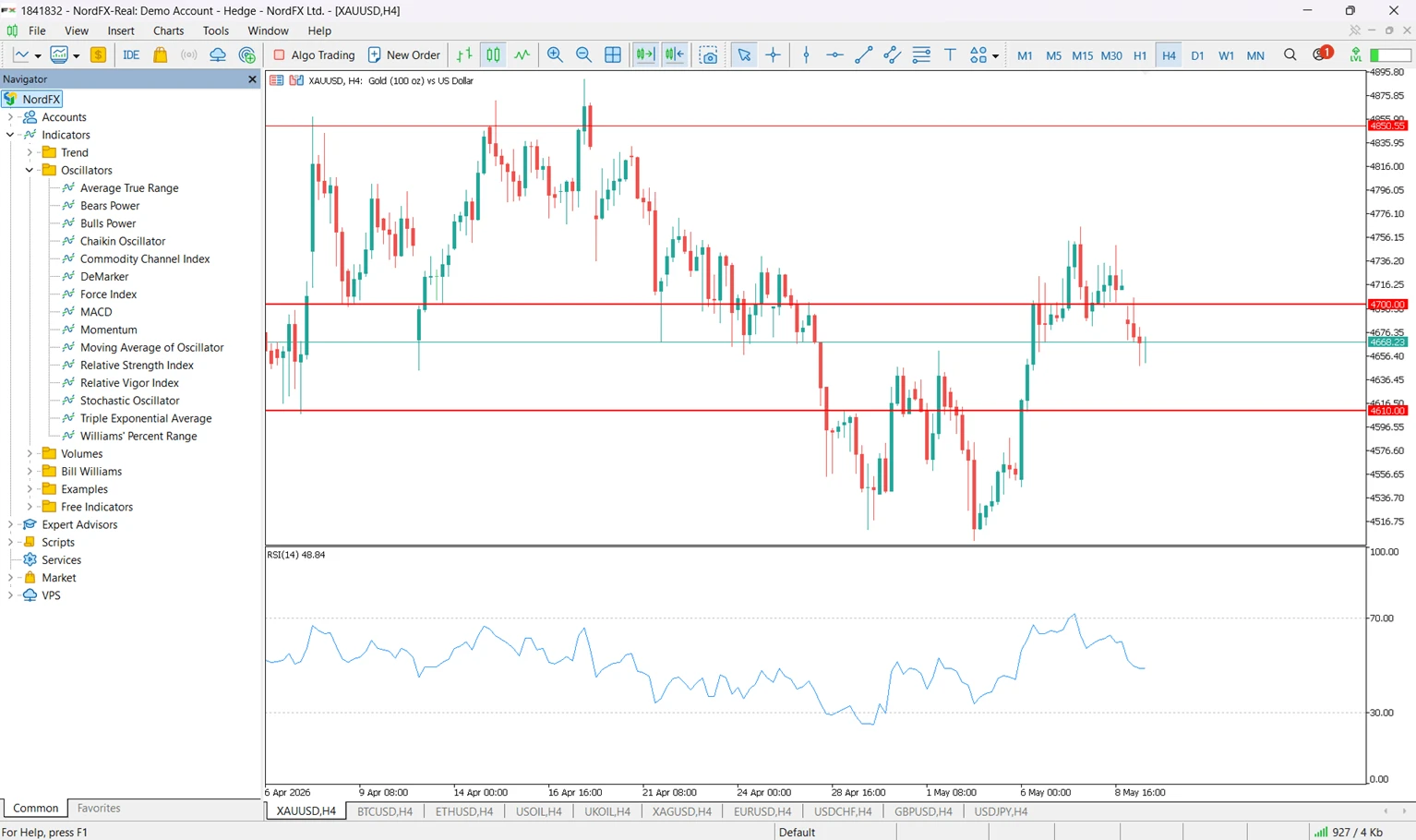
Pinapayagan din ng MT5 ang mga trader na mag-add ng indicators gamit ang Navigator window.
Mga hakbang:
- Buksan ang Navigator panel.
- I-expand ang Indicators section.
- Hanapin ang indicator.
- I-drag ang indicator papunta sa chart.
Mas mabilis madalas ang method na ito para sa mga trader na madalas gumamit ng indicators.
Paano mag-install ng custom indicators sa MetaTrader 5?
Ang custom indicators ay third-party tools na hindi kasama sa standard MT5 installation.
Paano mag-install ng custom MT5 indicator
- I-download ang indicator file (.mq5 or .ex5).
- Sa MT5, i-click ang File → Open Data Folder.
- Buksan ang:
- MQL5 → Indicators
- Kopyahin ang indicator file papunta sa Indicators folder.
- I-restart ang MT5 o i-refresh ang Navigator panel.
- Buksan ang Navigator → Indicators.
- I-drag ang custom indicator papunta sa chart.
Laging gumamit ng trusted sources kapag nagda-download ng custom indicators.
Built-in vs custom MT5 indicators
Feature | Built-in Indicators | Custom Indicators |
Installation | Already included in MT5 | Manual installation required |
Examples | RSI, MACD, Bollinger Bands | Community or third-party tools |
Complexity | Usually beginner-friendly | Varies |
Updates | Updated with MT5 updates | Depends on developer |
Availability | Standard in MT5 | Must be downloaded separately |
Bakit hindi lumalabas ang MT5 indicator ko?
Maaaring hindi lumabas ang isang indicator dahil sa ilang reasons.
Problem | Reason | How to fix |
Indicator missing from Navigator | File installed incorrectly | Place file inside MQL5 → Indicators |
Indicator does not load | Unsupported or corrupted file | Download a compatible MT5 version |
Custom indicator invisible | Navigator not refreshed | Restart MT5 or refresh Navigator |
Indicator looks incorrect | Wrong timeframe or settings | Check chart timeframe and parameters |
Puwede ka bang gumamit ng multiple indicators nang sabay?
Oo. Pinapayagan ng MT5 ang mga trader na gumamit ng several indicators sa same chart nang sabay-sabay.
Halimbawa:
- Moving Average para sa trend direction
- RSI para sa momentum
- Bollinger Bands para sa volatility
Batay sa observed MT4/MT5 trading behavior, maraming trader ang mas gusto ang pag-combine ng dalawang o tatlong complementary indicators kaysa umasa lang sa isang signal.
Common mistakes kapag nagdadagdag ng indicators sa MT5
Problem | Reason | How to avoid |
Using too many indicators | Nagiging mahirap basahin ang chart | Gumamit lang ng ilang complementary tools |
Ignoring timeframe differences | Nag-iiba ang signals across timeframes | I-match ang timeframe sa trading strategy |
Installing MT4 indicators in MT5 | Iba ang architecture ng MT4 at MT5 | Gumamit ng MT5-compatible files |
Using indicators without context | Indicator lagging ang price action | I-combine ang indicators with chart analysis |
Forgetting to save setup | Nawawala later ang indicator settings | I-save ang chart template after setup |
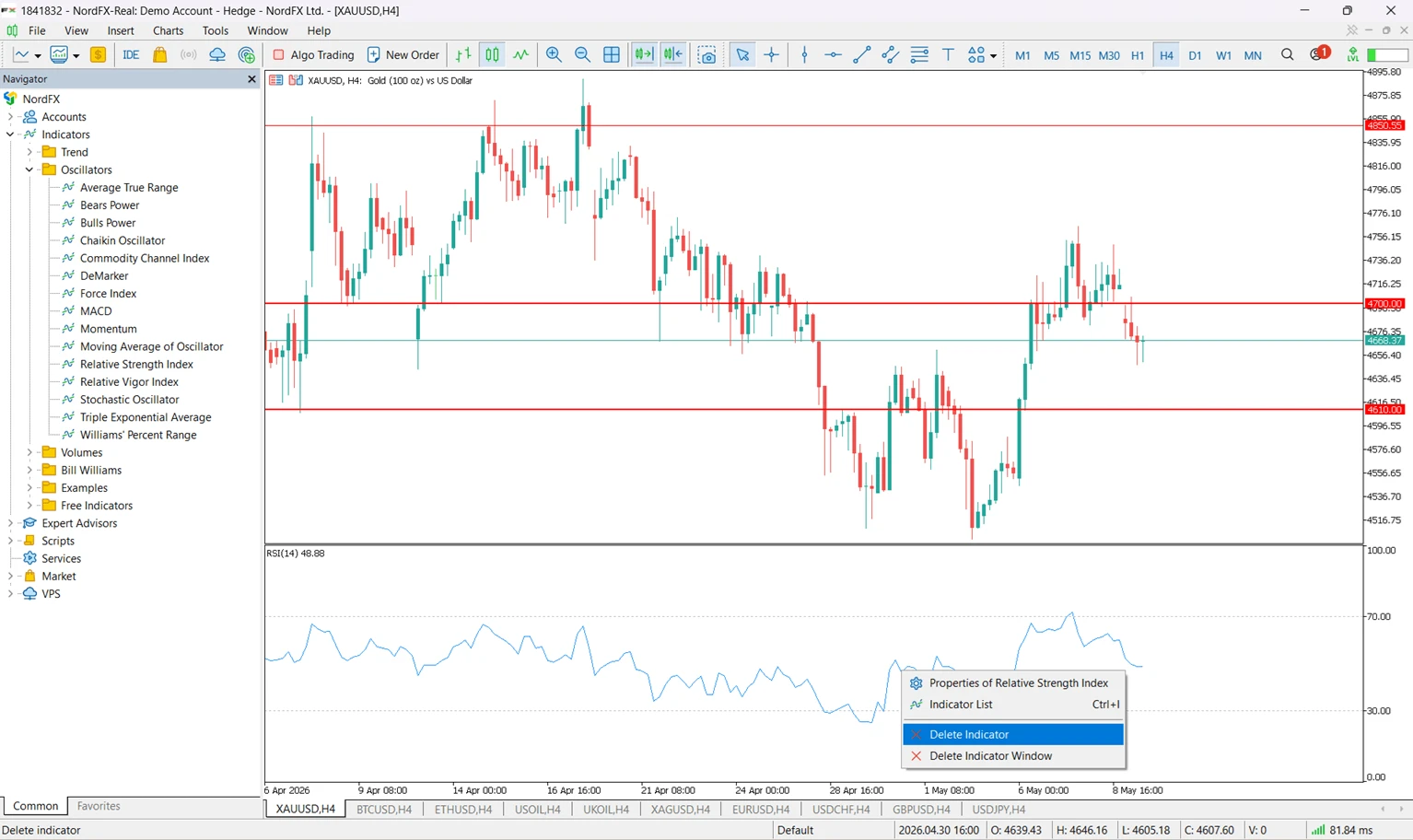
Paano mag-remove ng indicators mula sa chart sa MT5?
Para mag-remove ng indicator:
- I-right-click ang chart.
- Piliin ang Indicators List.
- Piliin ang indicator.
- I-click ang Delete.
Puwede mo ring i-remove lahat ng indicators mula sa same menu.
FAQ
Saan located ang indicators sa MT5?
Maaaring i-access ang indicators through Insert → Indicators or the Navigator panel.
Puwede bang mag-install ng custom indicators sa MT5?
Oo. Ang custom indicators ay puwedeng i-install through ang MQL5 → Indicators folder.
Compatible ba ang MT4 indicators sa MT5?
Hindi lagi. Magkaiba ang programming languages at platform architecture ng MT4 at MT5.
Puwede ba gumamit ng ilang indicators sa isang chart?
Oo. Suportado ng MT5 ang multiple indicators nang sabay-sabay.
Bakit hindi lumalabas ang custom indicator ko sa MT5?
Ang pinaka-common reasons ay incorrect installation paths, incompatible files, or Navigator refresh issues.
Nagga-guarantee ba ng profitable results ang indicators?
Hindi. Ang indicators ay analytical tools at hindi nagga-guarantee ng future market performance.
Key takeaways
- Kasama sa MT5 ang maraming built-in technical indicators.
- Puwedeng mag-add ng indicators through Insert → Indicators or the Navigator panel.
- Ang custom indicators ay dapat i-install sa loob ng MQL5 → Indicators folder.
- Hindi laging compatible ang MT4 indicators sa MT5.
- Mas effective ang indicators kapag kinombine sa mas malawak na chart analysis.
Related reading:
- MetaTrader 5 at NordFX
- NordFX Platforms
- MT5 Indicators
- RSI, MACD, Bollinger Bands, at Stochastic Oscillator educational pages sa NordFX
Technical reference:
Kilalanin ang Author
Si Vanessa Polson ay marketing manager sa NordFX na may higit sa labindalawang taon ng experience sa online marketing sa financial services industry. Nakapag-develop at nakapag-execute siya ng data-driven campaigns across search, social, at display channels sa in-house environments. Ang work niya ay nakatutok sa pag-translate ng complex financial products at trading tools into clear, practical educational content, kaya may broad at well-rounded view siya ng global trading landscape.
Connect with Vanessa sa LinkedIn.
Bumalik Bumalik