How do I open and close a trade in MT4 for Windows?
Short answer: To open a trade in MT4, right-click an instrument in Market Watch, select New Order, enter the volume and stop levels, then submit a Buy or Sell order. To close it, find the position in Terminal → Trade, right-click it, select Close Order, and confirm using the Close button. Check Account History to verify the completed trade.
This tutorial shows you how to open a market trade, check the resulting position, and close it manually in MetaTrader 4. It covers MT4 for Windows with an English-language interface.
Practise on a demo account first. If you need one, follow NordFX’s guide to opening an MT4 demo account.
Check your account and trading instrument
Confirm that MT4 is connected to the account you intend to use. Check the account number and server, particularly if you switch between demo and live accounts.
To reconnect, use File → Login to Trade Account and enter the credentials for that trading account.
Open View → Market Watch, or press Ctrl+M. Find the instrument you want to trade. If it is missing, right-click inside Market Watch and select Symbols to choose from the available instruments.
Before setting the volume, right-click the instrument and select Specification. Review its contract size, minimum volume, volume step, and trading sessions.
Open the New Order window
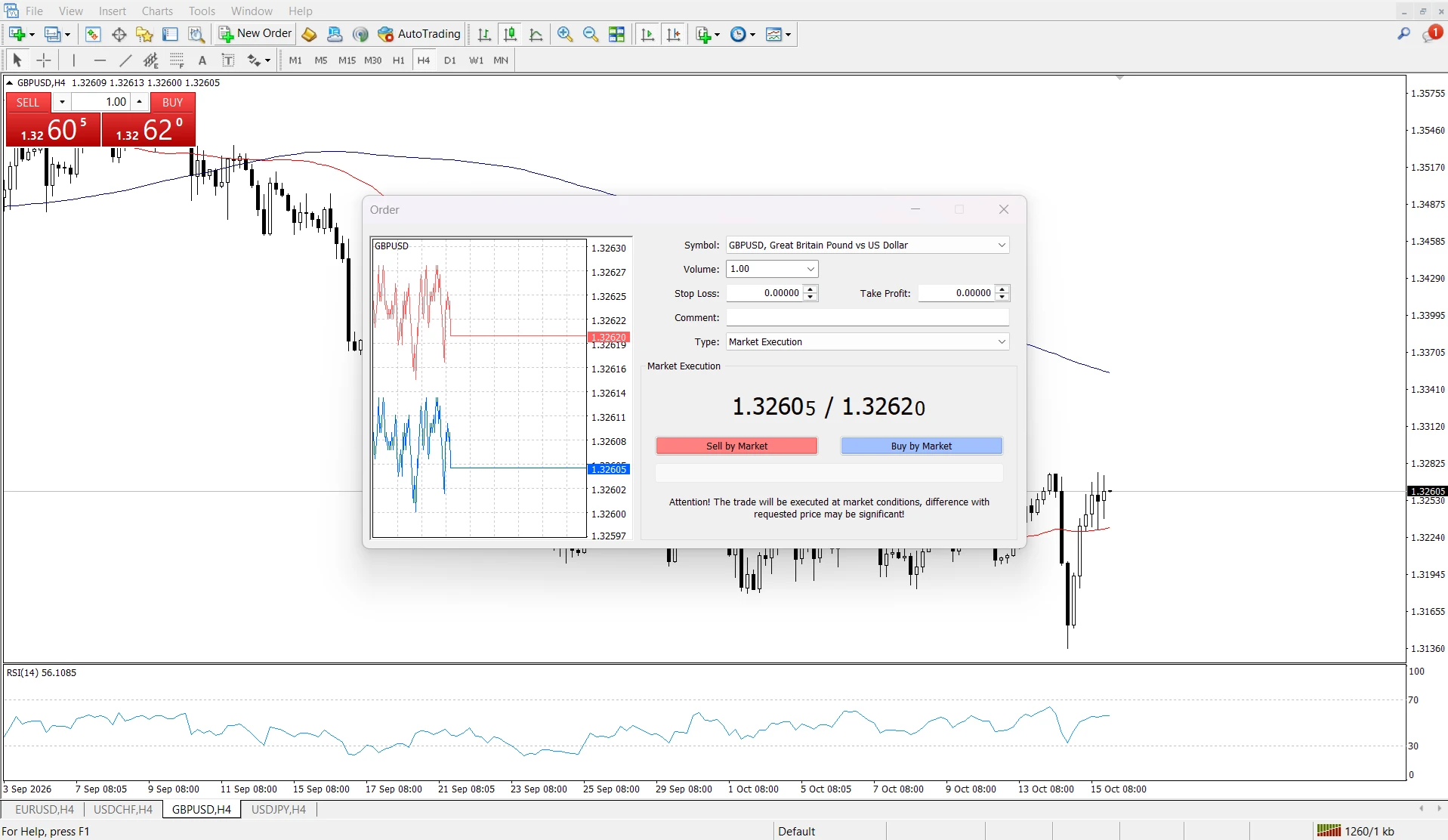
Right-click the instrument in Market Watch and select New Order. Alternatively, press F9, then check the Symbol field carefully.
The order window contains the controls for choosing volume, setting Stop Loss and Take Profit, and submitting the trade.
Enter volume and stop levels
- Confirm the correct Symbol.
- Enter Volume in lots.
- Enter your planned Stop Loss and Take Profit prices.
- Check that Type shows the instrument’s execution mode rather than Pending Order.
- Review the complete request before submitting.
A zero value in Stop Loss or Take Profit means that the corresponding exit level is not attached.
Volume is the size of your position, rather than a cash loss limit. Choose it together with the planned stop distance. NordFX’s explanation of position sizing and risk management covers this relationship.
Submit Buy or Sell
Select Buy to open a long position or Sell to open a short position. Under Market Execution, the buttons may appear as Buy by Market and Sell by Market.
Click once and check the result before sending another request.
The execution mode is set for the instrument by the broker. Market Execution accepts execution at the available broker-determined price; Instant Execution can return a requote. If the window uses Request Execution, request a quote before confirming.
Confirm that the trade opened
Open View → Terminal, or press Ctrl+T, then select Trade.
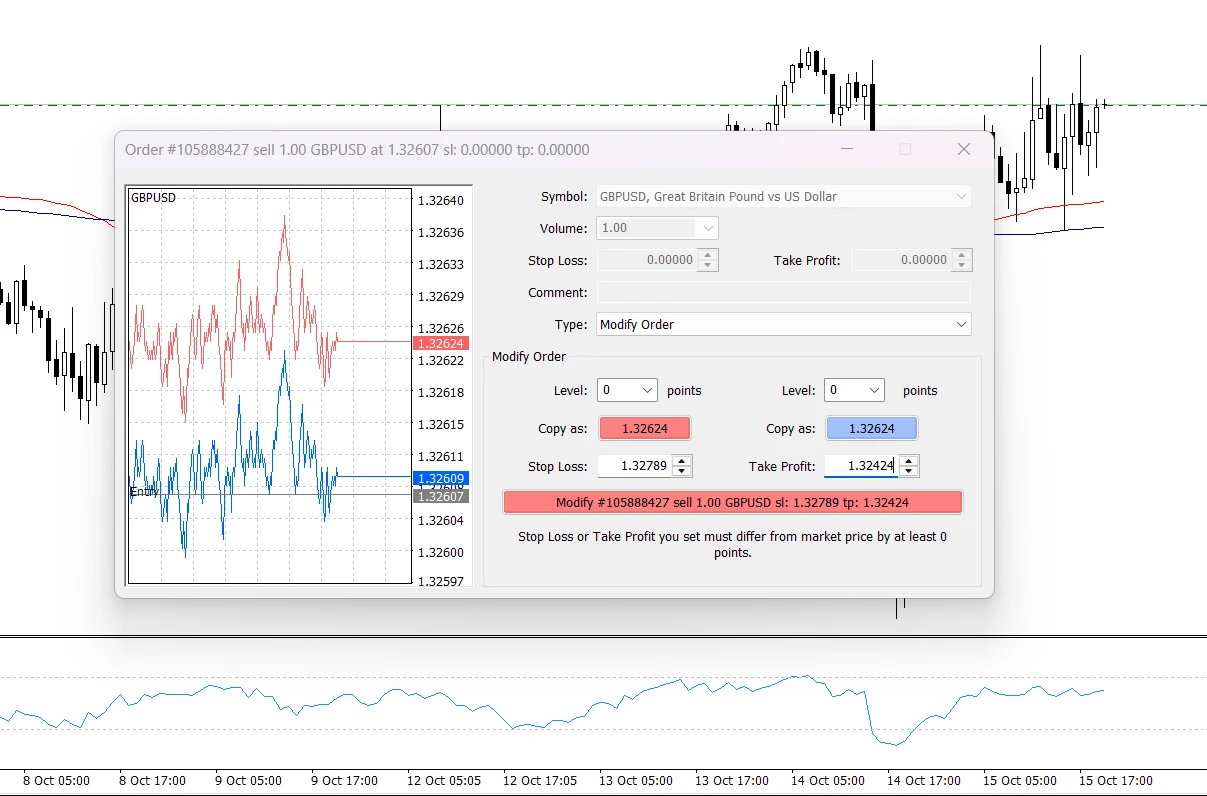
Find the open position and check its ticket number, symbol, Buy/Sell direction, size, opening price, and S/L and T/P values. The Profit column shows the floating result, which can change while the position remains open.
Check the actual opening price rather than assuming it matches the quote you saw before clicking.
For ordinary forex and CFD trading, a Buy opens at Ask and closes at Bid, while a Sell opens at Bid and closes at Ask. This difference can explain an initial floating loss. Read more about Bid and Ask prices.
Close the trade manually
Select the existing position
- In Terminal → Trade, locate the position you want to close.
- Right-click its row and select Close Order.
- In the order window, check the position details and closing Volume.
- Leave the full remaining volume selected for a complete exit.
- Click the Close button, which includes the position’s ticket details.
You can also open the position’s order window by double-clicking its row. Use the Close button to exit that position.
Opening a separate opposite trade is different from closing the selected position. For this walkthrough, use Close Order on the position you already hold.
Check the closing result
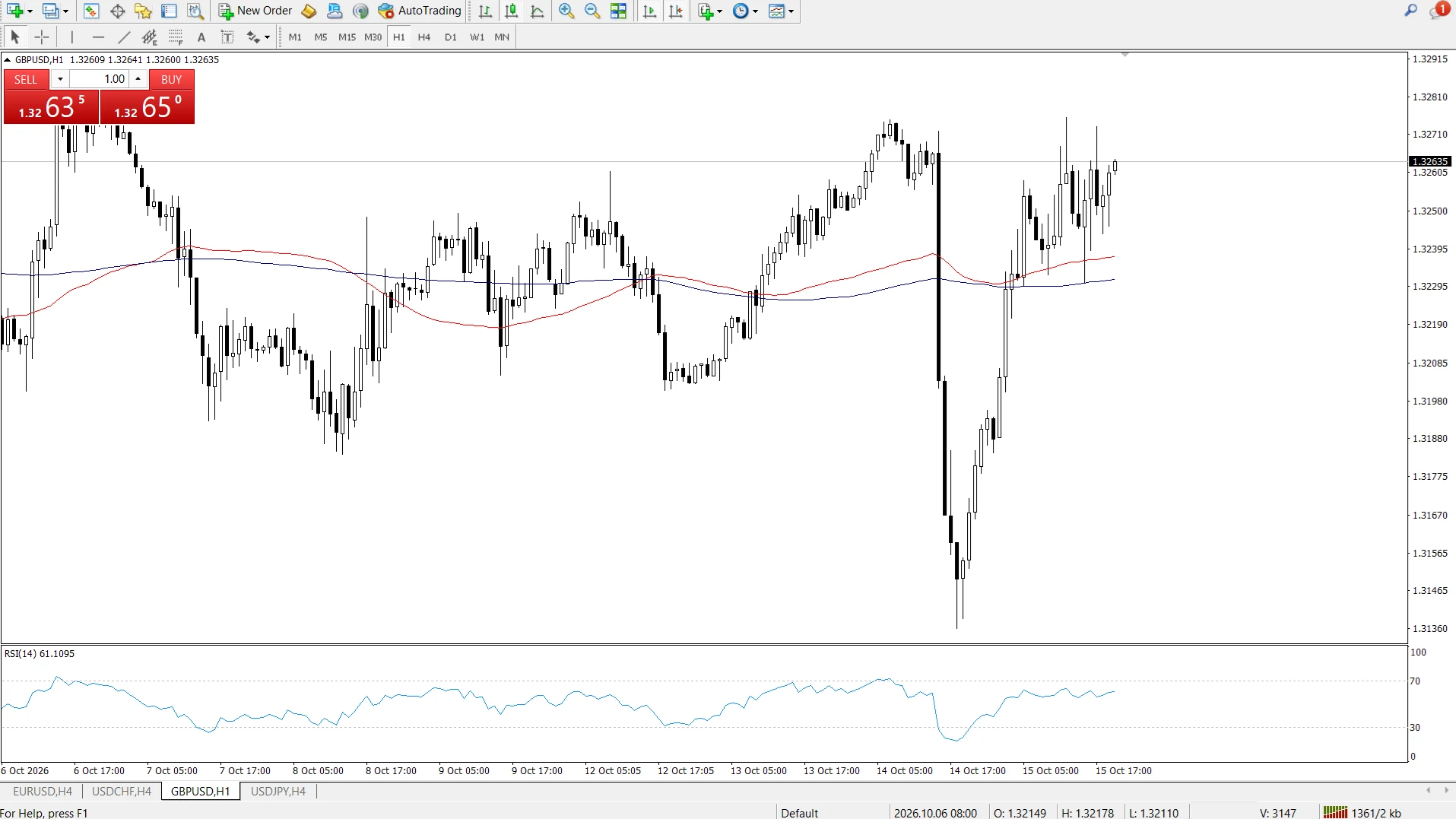
After successful full closure, the position should disappear from Trade.
Open Account History and find the completed trade. Review its opening and closing prices, closing time, and result. Check commission and swap separately where applicable.
If the trade is missing, right-click inside Account History and select All History, or choose an appropriate Custom Period.
Understand the one-click closing button
The small cross in the Profit column can close a position immediately when One Click Trading is enabled and the execution mode supports it. When one-click closure is unavailable, it opens the standard closing dialog.
Check the selected row before using this control. To practise with the standard closing workflow, leave One Click Trading disabled under Tools → Options → Trade.
Resolve common order problems
The volume is invalid
Check Specification for the instrument’s minimum and maximum volume and its volume step. The permitted quantity may differ between instruments.
Stop Loss or Take Profit is rejected
Check the price values and the instrument’s Stops level. An exit level placed too close to current prices can produce an invalid-stops message.
The platform returns a requote
Review the new price before accepting it. A requote is associated with Instant Execution; it means the original requested price was not accepted.
Frequently Asked Questions
Can I close only part of a trade in MT4?
Yes. In the closing window, enter a smaller Volume before clicking Close. The amount closed and the remaining volume must meet the instrument’s trading requirements. Check Trade afterwards to confirm the remainder.
Does closing MT4 close my open trades?
No. Exiting the platform does not submit a closing instruction. Reconnect and check Terminal → Trade to review the positions still open.
Can I close a trade before Stop Loss or Take Profit is reached?
Yes. Use Close Order to request a manual exit while trading is available for the instrument. You do not need to wait for an automatic exit level.
Is deleting a pending order the same as closing a trade?
No. A pending order is an instruction waiting for its entry conditions. An open position already carries market exposure. Check the Type field in Trade to identify which one you are managing.
Why does my final result differ from the floating profit I saw?
The closing price can change while your request is processed. Commissions and swaps may also affect the overall result. Review the completed record in Account History rather than relying on the earlier floating figure.
Go Back Go Back