How do I set a pending order with Stop Loss and Take Profit in MT4?
Short answer: Open New Order, select Pending Order in the Type field, and choose Buy Limit, Sell Limit, Buy Stop, or Sell Stop. Enter the volume, entry price, Stop Loss, Take Profit, and optional expiry, then click Place. Check Terminal → Trade to confirm that the pending order and its levels were accepted.
Choose the correct pending order
A pending order requests an entry when specified price conditions are met. Stop Loss and Take Profit are attached exit instructions that apply to the resulting position.
MT4 supports four pending entry types:
Order type | Entry level | Typical purpose |
Buy Limit | Below current Ask | Buy after a price decline |
Buy Stop | Above current Ask | Buy after a price rise |
Sell Limit | Above current Bid | Sell after a price rise |
Sell Stop | Below current Bid | Sell after a price decline |
Buy orders use Ask for their entry conditions; Sell orders use Bid. This distinction matters when comparing your intended entry with the chart.
For more background, see NordFX’s explanation of pending order types and their uses.
Place a pending order with SL and TP
Open the order window
Right-click your instrument in Market Watch and select New Order. In the upper Type field, choose Pending Order.
The window will display additional controls for the pending order type, entry price, and expiry.
Enter the order parameters
- Check Symbol and enter Volume in lots.
- Enter the Stop Loss and Take Profit price levels.
- In the pending-order Type dropdown, select the required entry type.
- Enter the planned entry in the “at price” field.
- Set Expiry if you want an automatic cancellation time and the server permits it.
- Review the request and click Place.
Enter actual prices in the entry, SL, and TP fields—not a cash amount or a number of pips.
For a new pending Buy setup, place SL below the planned entry and TP above it. For a pending Sell setup, place SL above entry and TP below it. Minimum distance requirements also apply.
Volume and stop distance together determine the planned monetary risk. NordFX’s guide to position sizing and risk management explains how to connect these decisions.
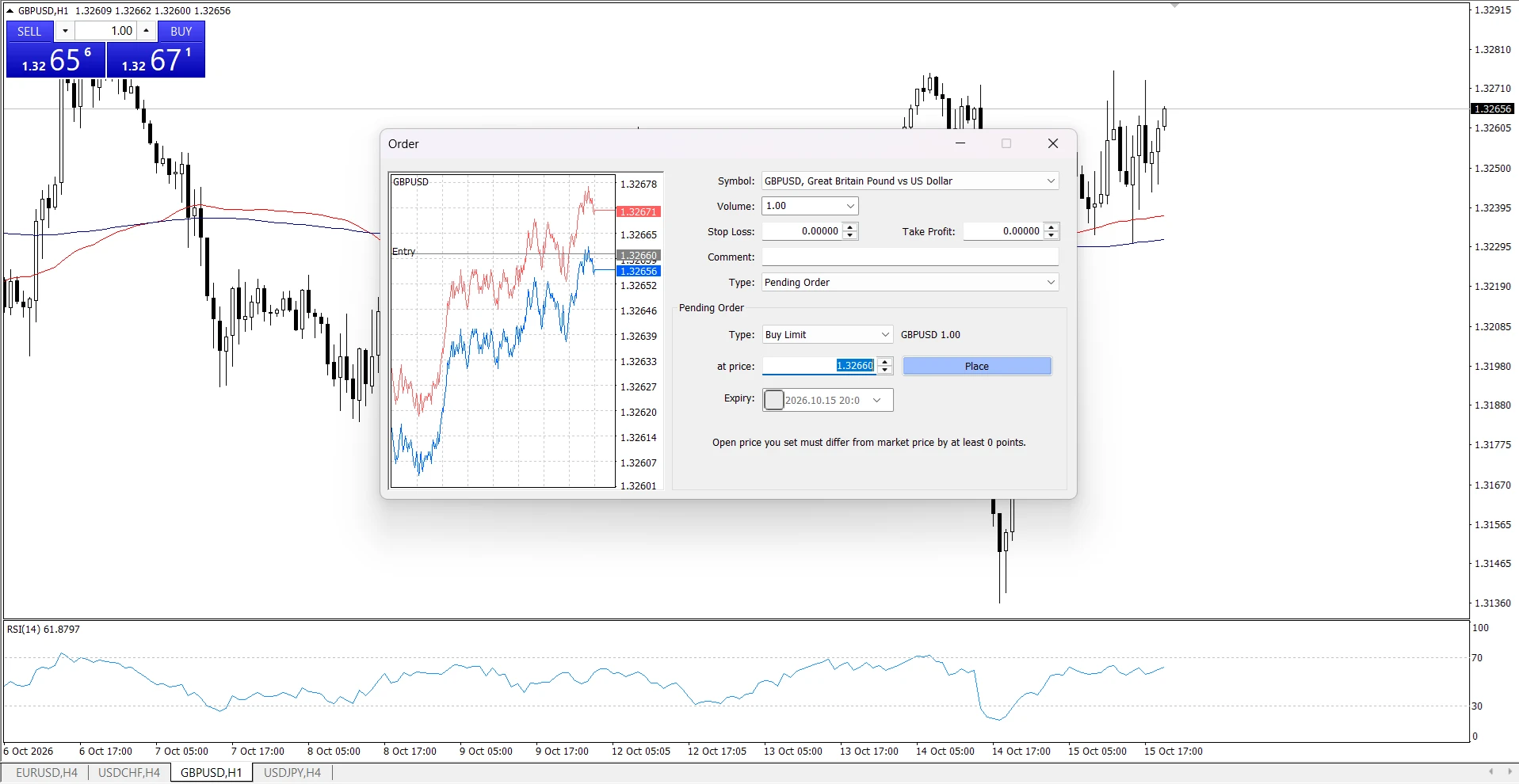
Example: a Buy Limit setup
Suppose EURUSD is quoted at Bid 1.10000 and Ask 1.10020. You want to practise placing a Buy entry below the current market.
An illustrative setup is Buy Limit at 1.09800, SL at 1.09600, and TP at 1.10200. Choose a permitted volume suitable for the practice account.
The planned entry-to-stop distance is 0.00200, while the entry-to-target distance is 0.00400. These prices demonstrate the setup; they are not recommended trading levels or a prediction.
Check the instrument’s current requirements before placing the order.
Confirm that the order was accepted
Open Terminal with Ctrl+T and select Trade.
Find the pending order and check its type, size, symbol, requested entry price, S/L, and T/P. A pending order is not yet an open position.
When it triggers successfully, Trade shows a Buy or Sell position instead. Its attached SL and TP transfer to that position.
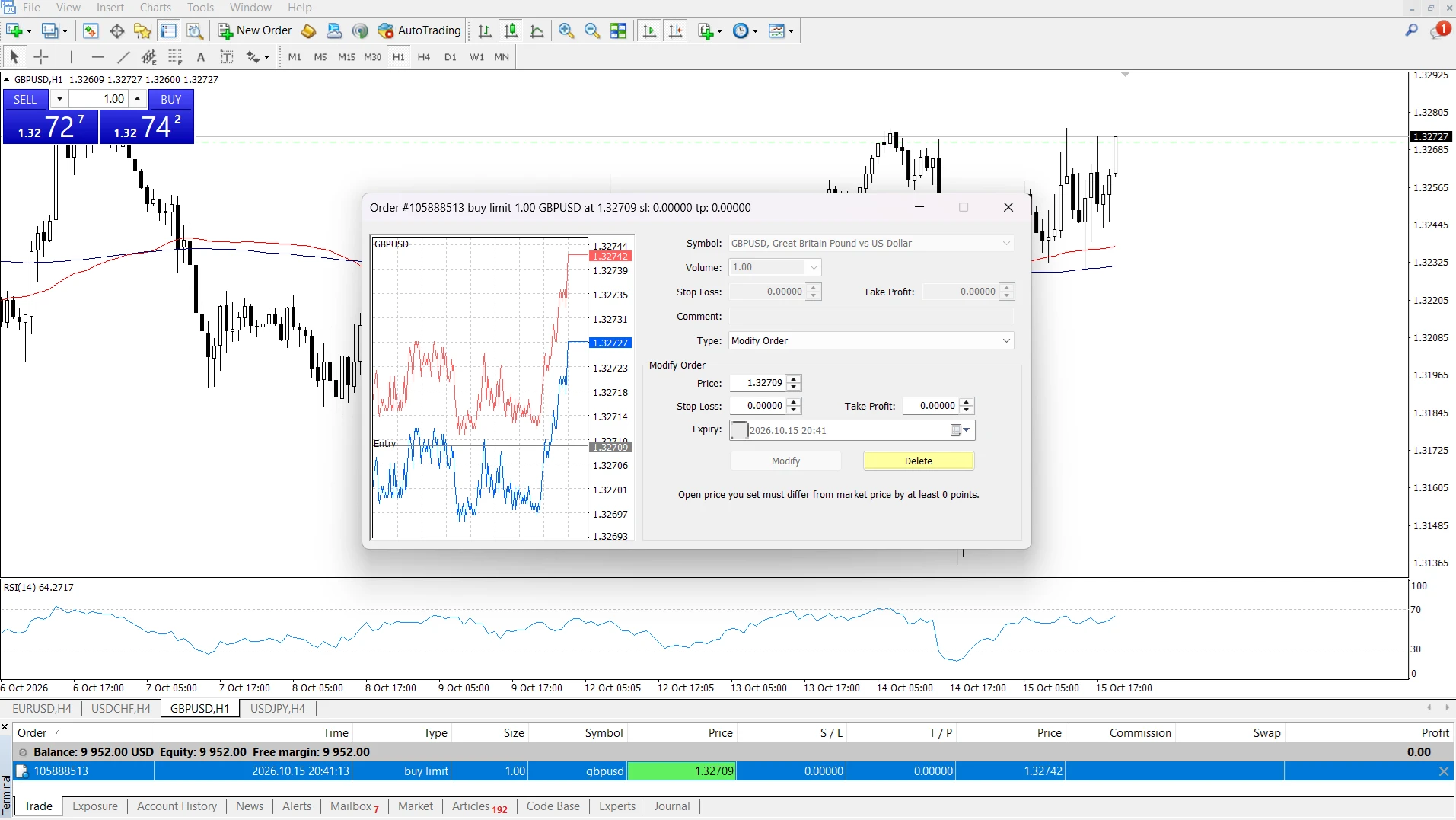
Modify a pending order
Change entry, stop levels, or expiry
In Terminal → Trade, right-click the pending order and select Modify or Delete Order.
Change the entry price, SL, TP, or expiry as required, then click Modify. Check the updated values in Trade after the request succeeds.
Keep any level you intend to retain. Setting SL or TP to zero removes that attached instruction.
Changing your planned entry can change the distances to both exits. Recheck the setup’s monetary risk before applying the modification.
Add or change SL/TP after entry
Once the pending order has become a position, right-click that position in Trade and choose Modify or Delete Order.
Enter the required Stop Loss and Take Profit prices, then click Modify. Confirm the accepted values in the S/L and T/P columns.
On an open position, the modification window changes exit levels; it does not change the historical entry price.
You can use the same process to add SL/TP to an existing market trade. For the reasoning behind these exits, see Stop Loss and Take Profit orders.
Cancel an untriggered order
Right-click the pending order in Trade, select Modify or Delete Order, and click Delete.
After successful cancellation, its pending row disappears from Trade and the cancellation is recorded in Account History.
If it has already triggered, you must manage the resulting position instead of deleting the former pending instruction.
Check rejected prices and stop levels
Check the correct side of the market
Confirm that the pending type matches your entry: Buy Limit below Ask, Buy Stop above Ask, Sell Limit above Bid, or Sell Stop below Bid.
MT4 charts normally display Bid. Use Bid and Ask prices when checking whether a Buy entry condition has been reached.
Review the instrument’s distance restrictions
Right-click the symbol in Market Watch → Specification. Check Stops level for minimum distances and Freeze Level for restrictions near current prices.
If Modify is unavailable, review the entered prices and their permitted distances. Avoid removing a planned protective stop simply to get the request accepted.
Frequently Asked Questions
Is Buy Stop the same as Stop Loss?
No. Buy Stop requests a new Buy entry above the current Ask. Stop Loss is an exit instruction attached to a pending order or an open position.
Can SL or TP cancel my pending order before entry?
No. Attached SL/TP levels apply to the position after entry. To cancel an untriggered order, delete it or use an accepted expiry setting.
Why will MT4 not accept an expiry time?
Some trade servers do not permit pending-order expiration. Check the rejection message and the applicable account conditions. If you place an order without expiry, remember to review and cancel it manually when necessary.
Does Stop Loss guarantee the maximum amount I can lose?
No. Price gaps and slippage can affect execution, and trading costs influence the final result. Choose volume with those limitations in mind.
Can I remove Take Profit while keeping Stop Loss?
Yes. Set Take Profit to zero in Modify or Delete Order, preserve the intended Stop Loss, and click Modify. Check both values afterwards.
Go Back Go Back