How do I set Stop Loss, Take Profit and Trailing Stop in MT5?
Short answer: Enter Stop Loss and Take Profit in the New Order window, or add them to an existing position through Toolbox → Trade → Modify or Delete. To enable Trailing Stop, right-click the position, open Trailing Stop, and choose a distance in points. Trailing Stop requires the desktop terminal to remain running and connected; accepted SL/TP levels are stored on the broker’s server.
Understand the three settings
Stop Loss requests an exit when price reaches a level intended to limit losses. Take Profit requests an exit at a chosen target. Neither guarantees an exact financial result: execution conditions and trading costs still matter.
For background on choosing these levels, see NordFX’s explanations of Stop Loss and Take Profit orders.
Trailing Stop automatically adjusts the Stop Loss as price moves favourably. It does not move the Take Profit.
Choose whether to enter prices or points
Open Tools → Options → Trade and find Stop levels. Select “in prices” for this walkthrough, then click OK.
With this setting, enter an actual market price in the Stop Loss and Take Profit fields. Do not enter the cash amount you are willing to lose.
The alternative “in points” setting uses a distance instead. This preference applies to SL/TP entry; the built-in Trailing Stop uses points.
Set Stop Loss and Take Profit when opening a trade
- Right-click the instrument in Market Watch and select New Order.
- Check the symbol, execution type, and volume.
- Enter the intended Stop Loss and Take Profit prices.
- Review the details, then submit the Buy or Sell order.
- Open Toolbox → Trade and check the resulting S/L and T/P values.
For ordinary forex and CFD positions, use the following relationship to current prices:
Position | Stop Loss | Take Profit |
Buy | Below current Bid | Above current Bid |
Sell | Above current Ask | Below current Ask |
The instrument’s minimum stop distance also applies. These relationships concern current prices, so a Stop Loss on an already profitable trade can sit beyond its original entry price.
For example, suppose EURUSD is quoted at Bid 1.10000 and Ask 1.10020. A practice Buy setup might use SL 1.09800 and TP 1.10400, provided those levels meet the symbol’s requirements. These are illustrative prices, not recommended trading levels.
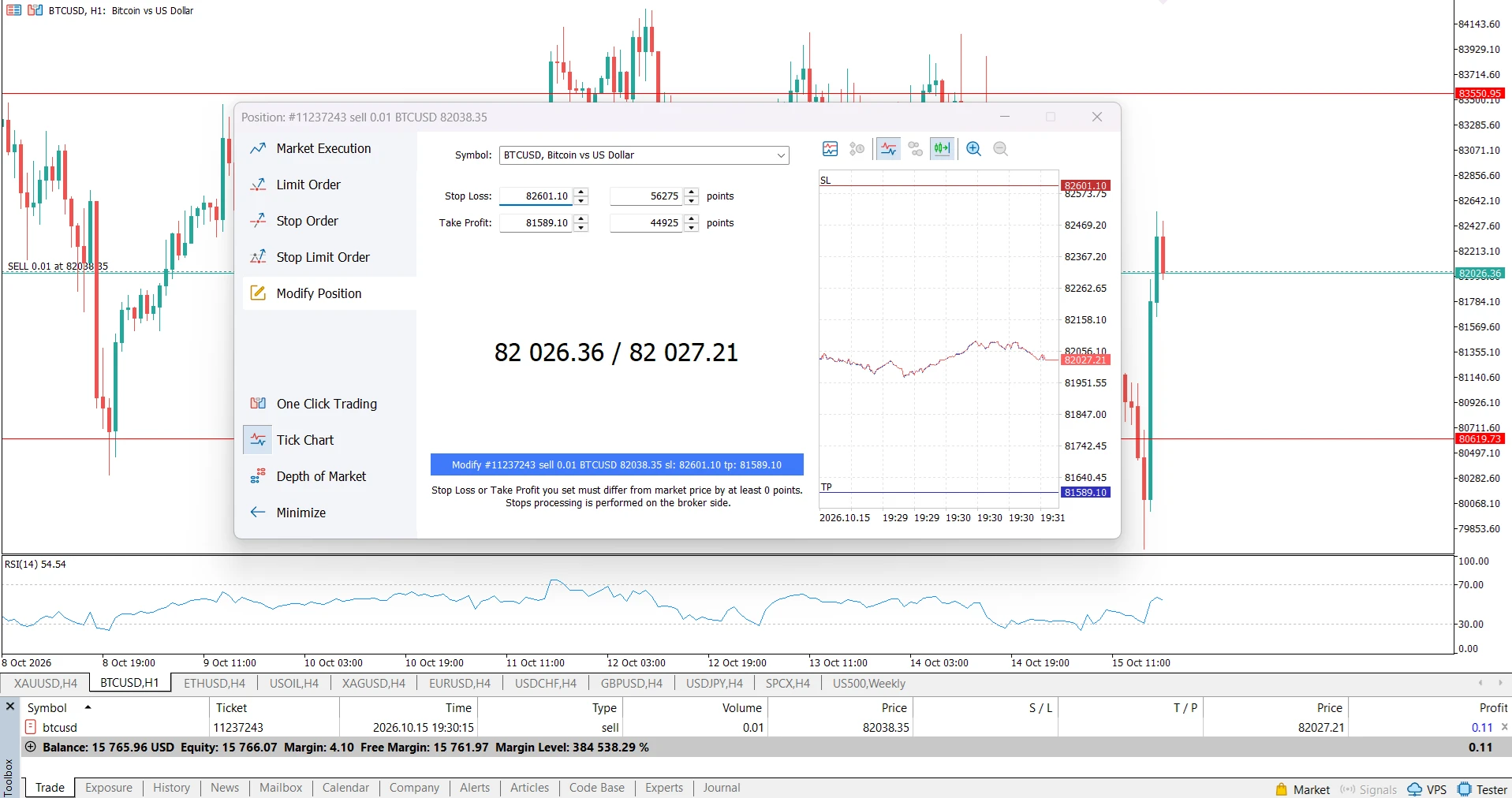
Add or change SL/TP on an open position
In Toolbox → Trade, right-click the position and select Modify or Delete.
Enter the new Stop Loss and Take Profit values, then click Modify. Check the updated S/L and T/P columns after the request succeeds.
When changing only one level, preserve the other unless you intend to remove it.
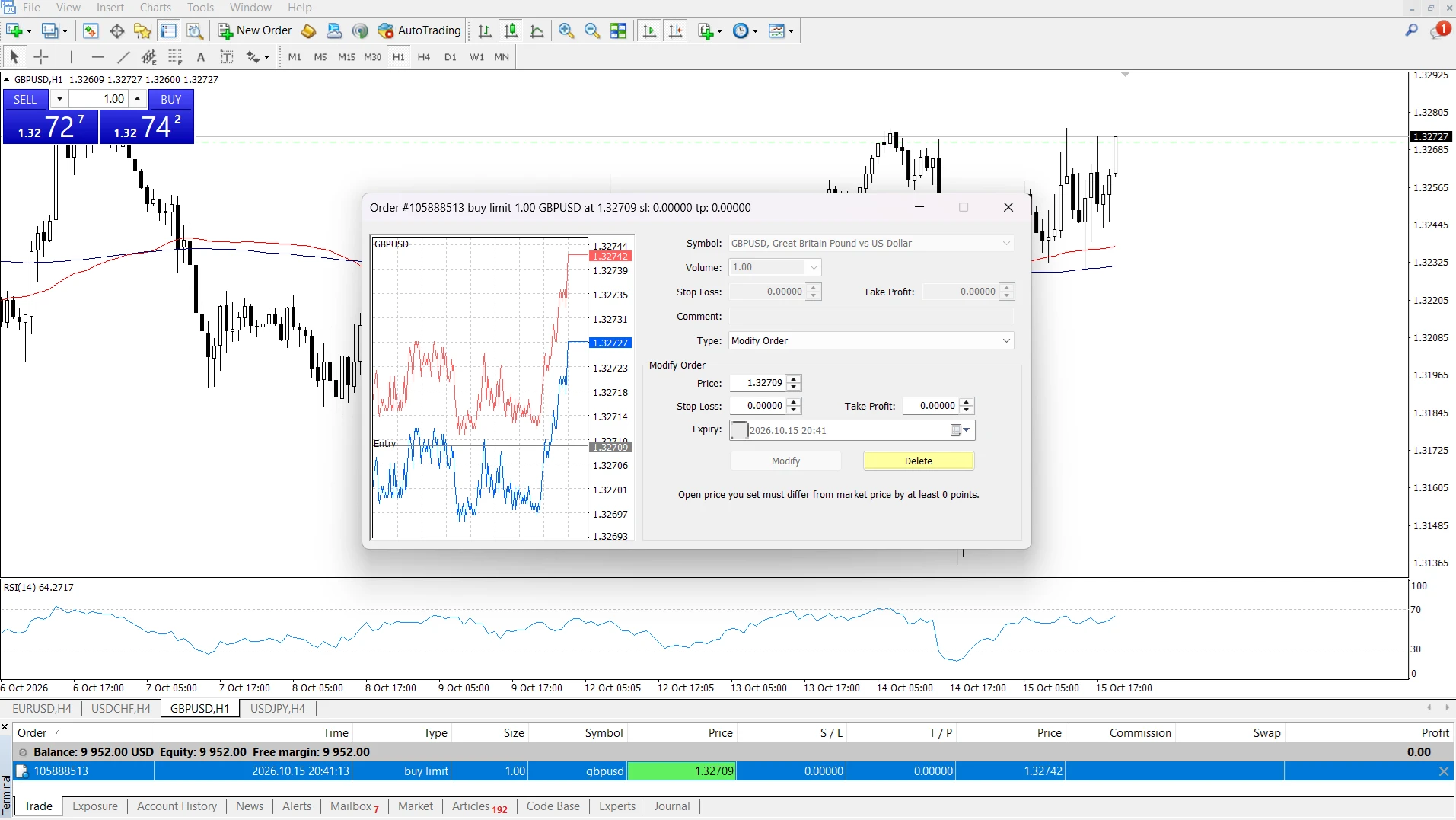
If you want to see the levels on the chart, enable Show trade levels under Tools → Options → Charts. Also check Properties → Show → Show trade levels for that chart.
Enable Trailing Stop
Select a distance
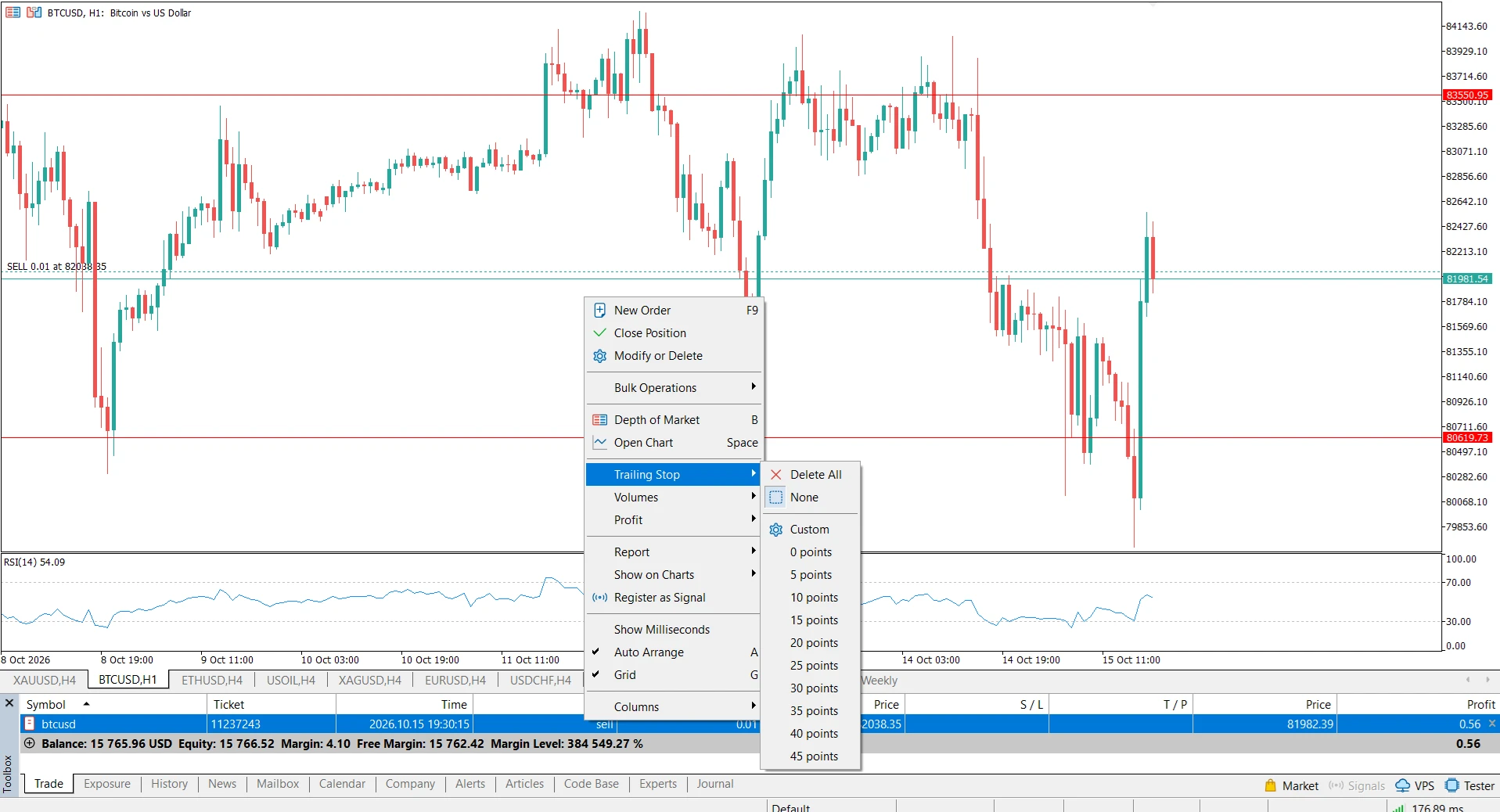
- In Toolbox → Trade, right-click the relevant position.
- Open Trailing Stop.
- Select a preset distance in points, or use the custom-level option to enter your own distance.
- Reopen the submenu to check the selected setting.
Check the symbol’s quote precision before choosing a value. On a five-decimal EURUSD quote, one point is 0.00001: 200 points therefore represent 0.00200, commonly called 20 pips. This conversion differs for other instruments.
A suitable distance depends on volatility and your trading plan. NordFX’s guide to how trailing stops work discusses this choice.
Check when trailing begins
Trailing does not necessarily move the Stop Loss immediately. MT5 waits until the favourable price movement reaches the selected distance, then sends an SL update. Further favourable movement can tighten it; a reversal does not loosen it.
For illustration, assume a EURUSD Buy entry at 1.10000 and a 200-point trail on a five-decimal quote. At Bid 1.10250, the calculated SL would be 1.10050. At Bid 1.10300, it would be 1.10100, subject to successful updates.
Watch the position’s S/L value to confirm movement. Selecting a trail does not mean an initial protective SL has already been placed, so set that separately.
Keep the terminal running for trailing updates
Accepted Stop Loss and Take Profit levels remain on the broker’s server when you close MT5.
Trailing Stop runs in the desktop terminal. Closing MT5, losing connectivity, or letting the computer sleep interrupts further updates. The last successfully accepted SL remains in place.
Change or remove the settings
To change the trailing distance, choose another value in the position’s Trailing Stop submenu.
To disable trailing for that position, select None. Delete All disables trailing across all open positions and pending orders. Disabling trailing leaves the existing SL in place.
To remove SL or TP, open Modify or Delete, set the relevant field to zero, and click Modify. Confirm the result in Trade. Removing SL leaves the position without that protective exit.
Frequently Asked Questions
Why does MT5 show “Invalid stops”?
A level may be on the wrong side of current prices or too close to them. Right-click the symbol in Market Watch → Specification and check Stops level. Also confirm whether you are entering prices or points.
Why is my Trailing Stop not moving?
The position may not yet have reached the selected favourable distance. Check that MT5 is running and connected. Updates are not continuous: MetaQuotes specifies a maximum frequency of one trailing update per position every ten seconds.
Can Take Profit and Trailing Stop work together?
Yes. Take Profit remains a fixed exit target while Trailing Stop adjusts SL. The position can close when either exit condition is executed.
Why did a Sell position hit its stop when the chart did not touch it?
For ordinary forex and CFD positions, Sell exits are checked against Ask. A chart displaying Bid alone may therefore not show the triggering price. Read more about how spread affects trade closing.
Does Stop Loss guarantee my maximum loss?
No. Slippage and price gaps can produce a different execution price, and trading costs affect the final result. Match position size to the planned stop distance as part of your risk management.
Go Back Go Back